Sources & permissions
What gets captured
Section titled “What gets captured”A recording is up to four synchronised streams:
- Screen — a display or a single window, at the screen’s native resolution and frame rate.
- Camera — any connected webcam. It records full-frame; the bubble’s shape and crop are editing decisions you can change later.
- Microphone — your narration, on its own track.
- System audio — what the Mac itself played, on its own track, so you can balance it against your voice afterwards.
Alongside the media, Kapture keeps an event log of your clicks, pointer movement, scrolls and keystrokes (only with Accessibility + Input Monitoring granted). The log is what makes the signature features work:
- Automatic zooms are placed where you actually worked.
- The cursor is drawn, not filmed — smooth, resizable, restyleable after the fact.
- The keystroke overlay shows the keys you pressed.
Choosing a source
Section titled “Choosing a source”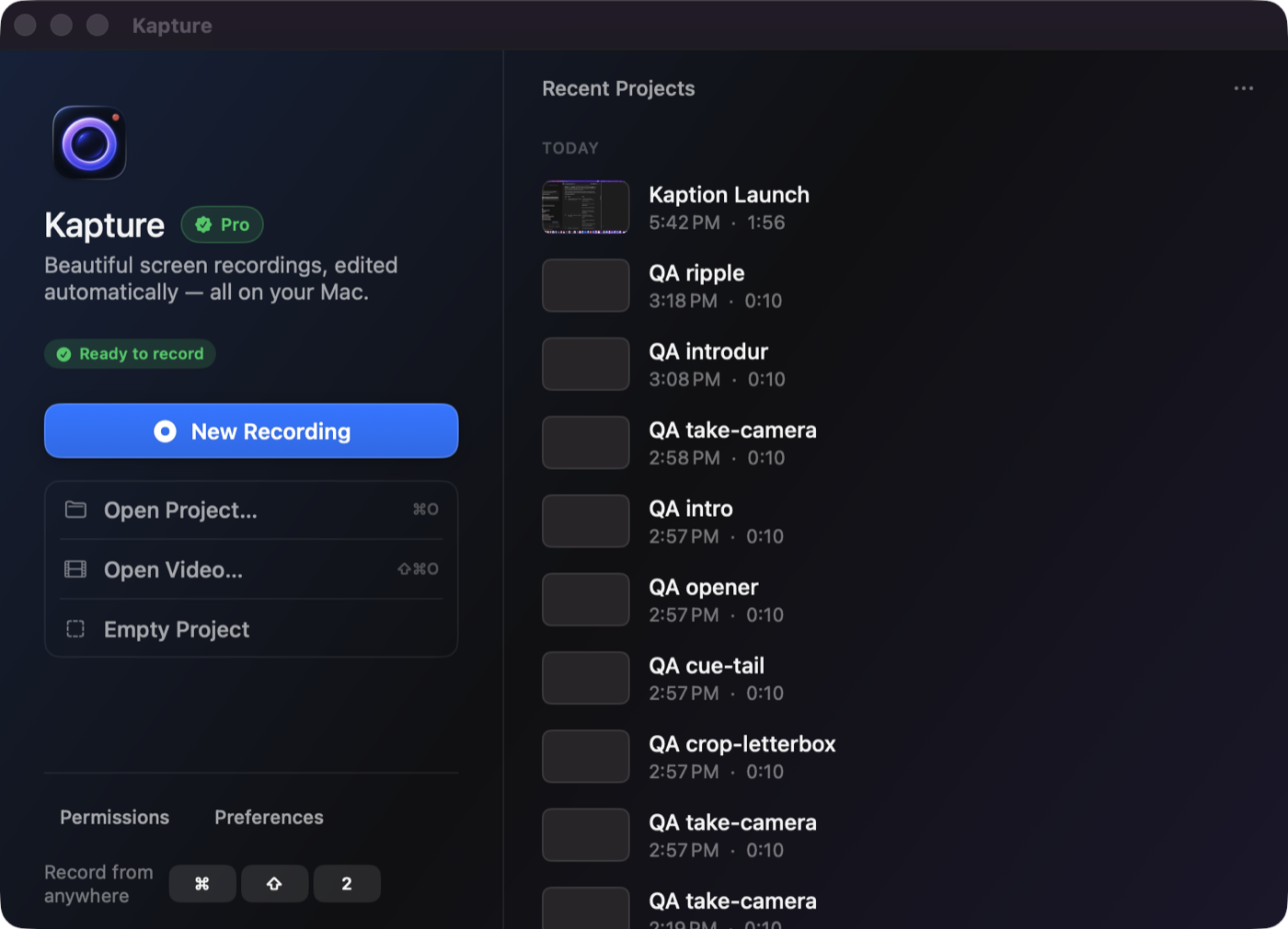
Displays and windows are listed with live thumbnails. Notes from experience:
- Record the whole display when you’re not sure what you’ll need — you can crop to the interesting region afterwards, and cropping never throws pixels away.
- Record a window when you want a clean capture of one app with nothing leaking in.
Permissions, precisely
Section titled “Permissions, precisely”| Permission | Required? | What stops working without it |
|---|---|---|
| Screen Recording | Yes | Recording, full stop. |
| Microphone | No | Narration track is silent. |
| Camera | No | No camera bubble. |
| Accessibility | No | No event log: no auto-zooms, drawn cursor, or key-caps. |
| Input Monitoring | No | Same — both switches feed the event log. |
| Speech Recognition | No | Only used if you pick Apple’s transcription engine for captions. |
Kapture never uploads any of this. Recordings, event logs and transcripts stay in the project bundle on your disk.