Cursor & keystroke overlays
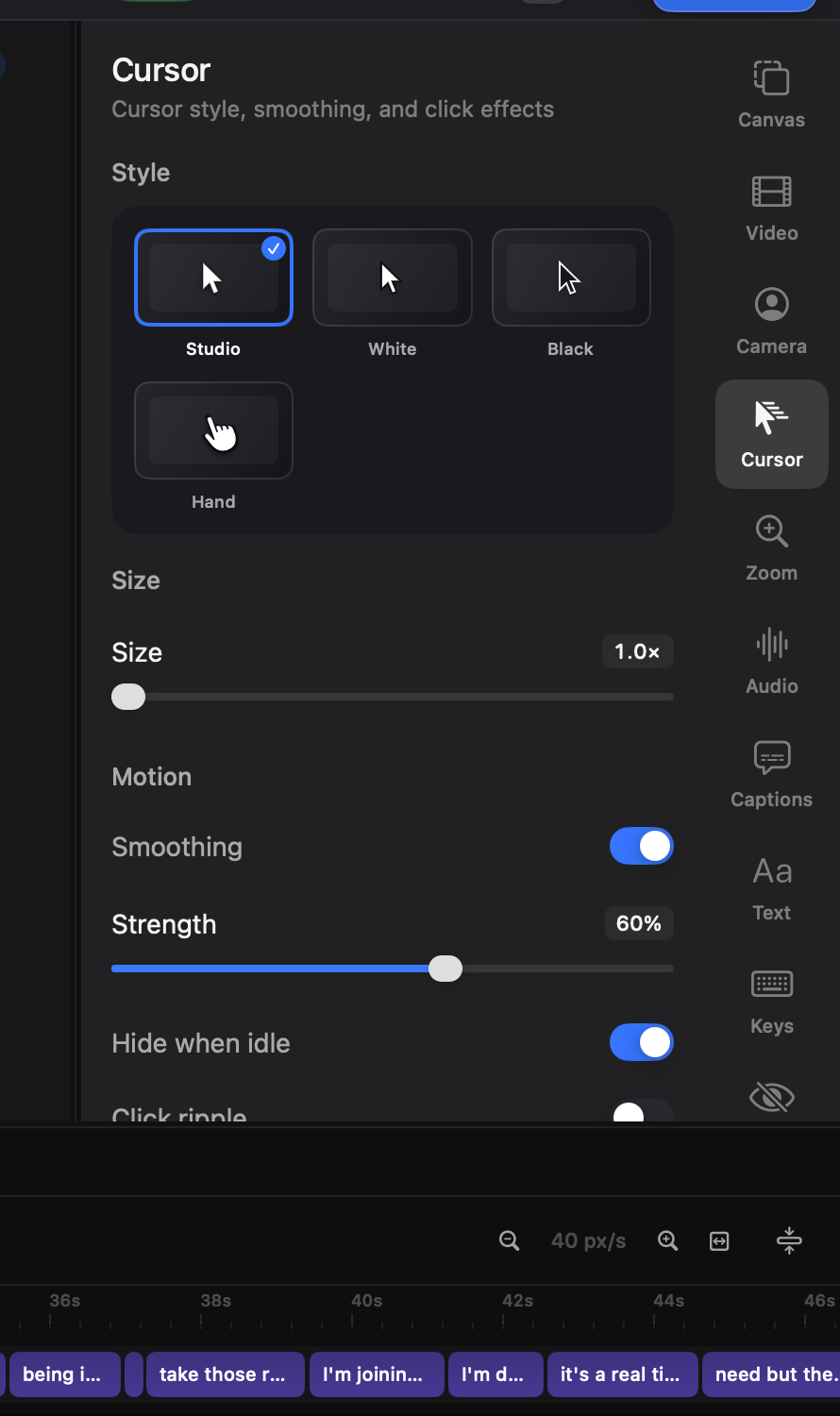
Kapture records with the system cursor hidden and draws its own from the event log. That’s why the pointer in your export can be bigger, smoother and cleaner than the one you actually moved.
Cursor options (⌘4)
Section titled “Cursor options (⌘4)”- Style — five tiles: Studio, White, Black, Hand, and Dot, a soft grey disc for recordings where an arrow would be noise.
- Size — scale it up for shrunk-down or phone-cropped video.
- Motion — Natural keeps the path exactly as recorded; Smooth replaces hand jitter with an eased path, with a strength slider under it. Motion blur sells fast movement.
- Hide when idle — the pointer fades after a configurable pause and returns on movement, so it never loiters over your UI.
- Click effects — the pointer dips as each click goes down, plus an optional ripple and click sound. The press is the only one that shows the click happening rather than reporting it a moment later, so it is on by default; turn it off with Press on click.
The keystroke overlay (⌘9)
Section titled “The keystroke overlay (⌘9)”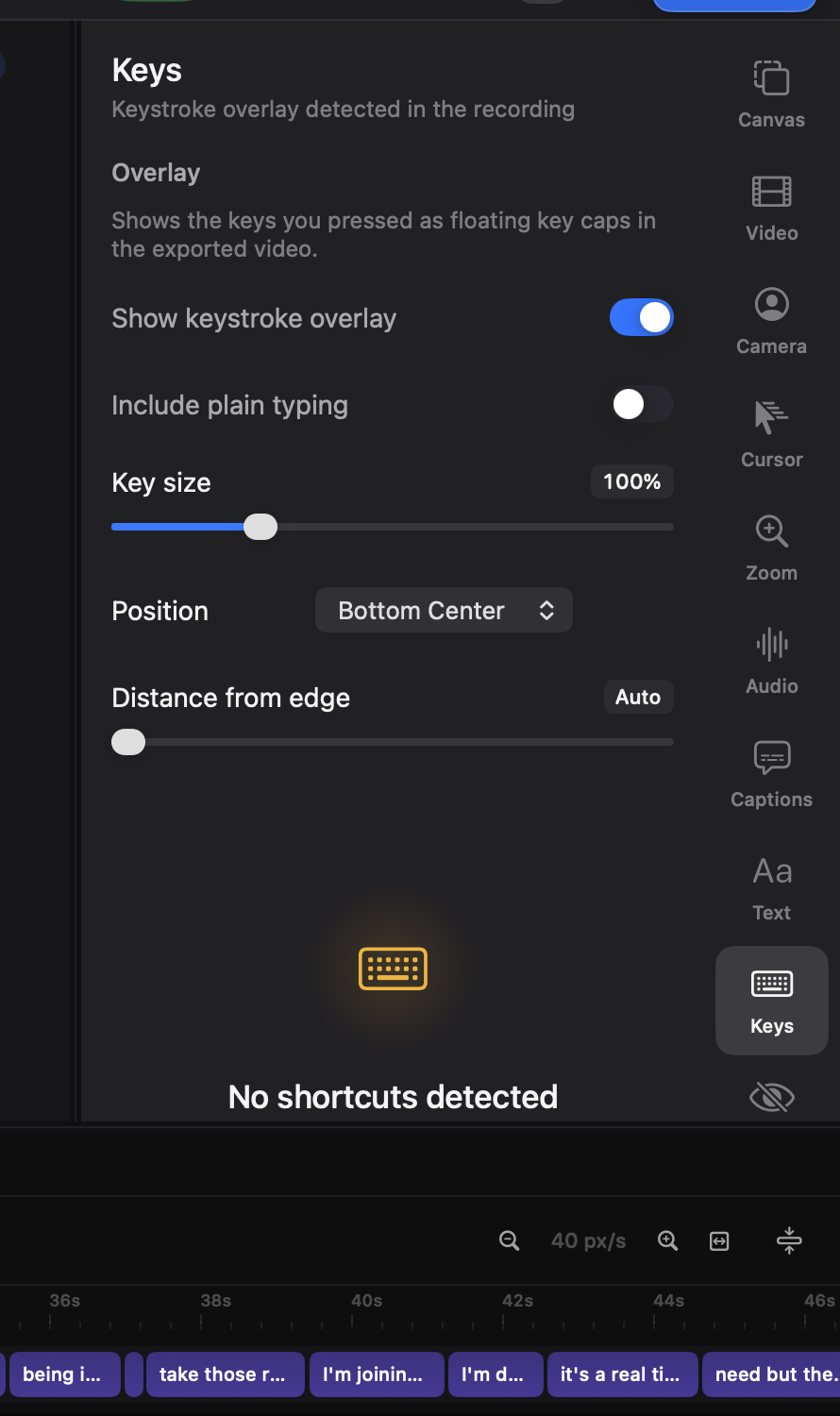
Shortcuts you pressed while recording appear as key-caps on the canvas — ⌘S, ⇧⌘K — timed to when you pressed them. Position and size are yours; plain typing is excluded by default so passwords and prose never appear, and any single chord can be suppressed.
Over takes
Section titled “Over takes”Both overlays draw from the original recording’s event log, so they stay off during appended takes rather than replaying the wrong session’s input.