Mixing & muting
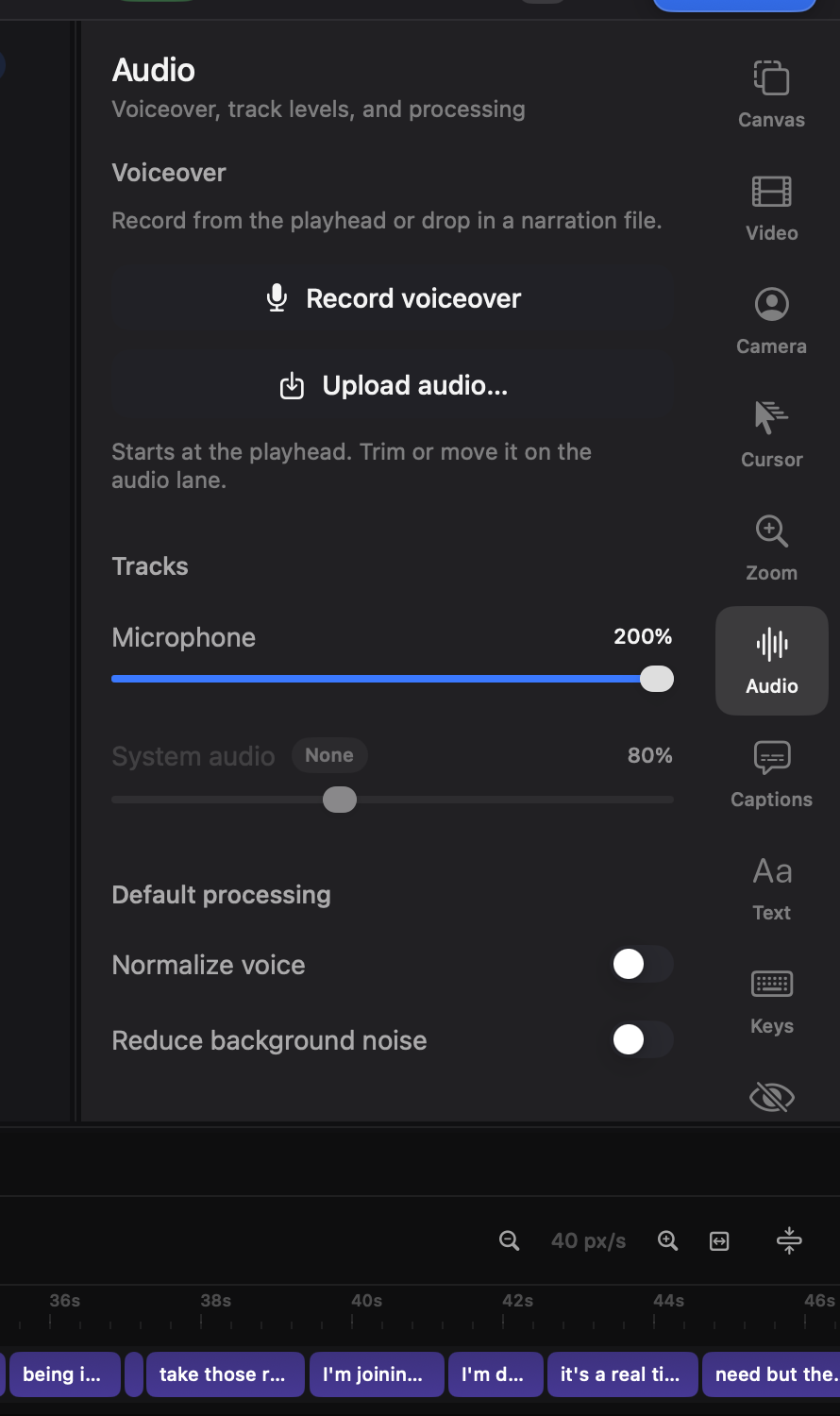
The tracks
Section titled “The tracks”Three faders in the Audio tab (⌘6):
- Microphone — your narration (and appended takes’ narration).
- System audio — what the Mac played.
- Music — an imported bed.
Each audio clip on the timeline also has its own volume and mute, layered on top of the track fader — quiet one take without touching the rest. A bar whose sound is off stops drawing its levels, so what you see is what you will hear.
Sound leaves with the picture it belongs to. Give a clip an entrance or an exit and its audio rides the same curve over the same stretch of time — a fade-out ends in silence instead of being cut off mid-word on the last frame. Fade a take and its screen, its camera and the voice recorded with them go together; fade only the screen while the camera keeps talking and the voice stays.
Ducking
Section titled “Ducking”With ducking on, music dips automatically while you speak and swells back in the gaps. No keyframing.
Processing
Section titled “Processing”- Noise reduction — cleans hiss and room tone from voice tracks, on device.
- Normalize — evens the loudness so one shouty take doesn’t spike the video.
Both can be set per-clip where a single take needs different treatment.
Muting a stretch
Section titled “Muting a stretch”Select a range on the timeline (⇧-drag), then Mute selection for the mic or system track — the cough, the notification ding, the “wait, let me redo that” all vanish without cutting the picture. Mute ranges stick to the footage through later edits.
Narration after the fact
Section titled “Narration after the fact”Record a voiceover straight into the timeline from the editor, or import a narration file (drop it on the audio lane). Imported audio trims, moves and mixes like any clip.