Intros & openers
The first frame is what X, LinkedIn and iMessage show before anyone presses play. Kapture gives you two one-step tools for owning it.
Add an intro from a file
Section titled “Add an intro from a file”Open the Video tab (⌘2) with nothing selected:
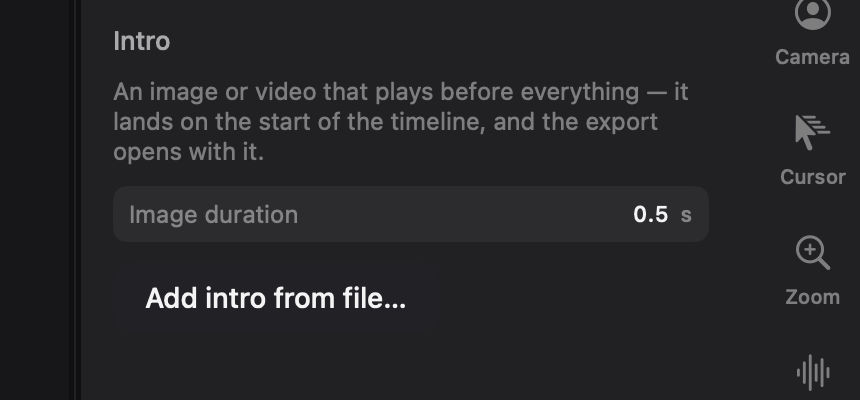
Pick an image or a video and Kapture does the whole dance: everything on the timeline slides right, the file lands at 0:00 sized to the full frame, and the playhead jumps there so you see it immediately.
- Image duration is the field above the button — the default 0.5s is enough to register as the platform’s preview frame without delaying your video. A video intro keeps its own length.
- The intro is a real clip: trim it, swap it, animate it, delete it like anything else. What you preview is exactly what exports.
- Changing your mind about length later is one edit — type a new number in its Duration field and the rest of the timeline follows automatically.
Use a moment from the video as the opener
Section titled “Use a moment from the video as the opener”Sometimes the best opener already exists at minute three. Select the clips that make that moment (a single clip is enough — linked camera and audio come along), open the command palette (⇧⌘K) and run “Use selection as opener”.
The block is copied to the very start; everything else slides right. Captions and zooms replay over the copy automatically, because they follow the footage, not the position.
If the moment is mid-clip, split at its edges first (T), then select the slice.
Which one, when
Section titled “Which one, when”| You want… | Use |
|---|---|
| A designed thumbnail/poster frame | Add intro with an image, 0.5s |
| A title card that holds | Add intro with an image, 2–3s |
| A cold open of the best moment | Use selection as opener |
| A pre-made bumper video | Add intro with the video file |