Cropping a recording
Cropping in Kapture is a source decision: you choose which pixels of a recording or file exist, and the layout works with what’s left. It never scales or distorts, and it’s always reversible.
Two crops, one window
Section titled “Two crops, one window”- The recording’s crop — press Crop above the canvas with nothing selected. Cut away a dock, a second monitor’s bleed, or everything but the app you care about.
- A clip’s crop — select an imported image or video first. Each clip carries its own crop, independent of the recording’s.
- One piece of the recording — select a trimmed segment of the recording first. It starts from the recording’s crop and keeps its own from then on; the other segments are untouched. The cursor, zooms and masks follow that piece’s crop while it plays.
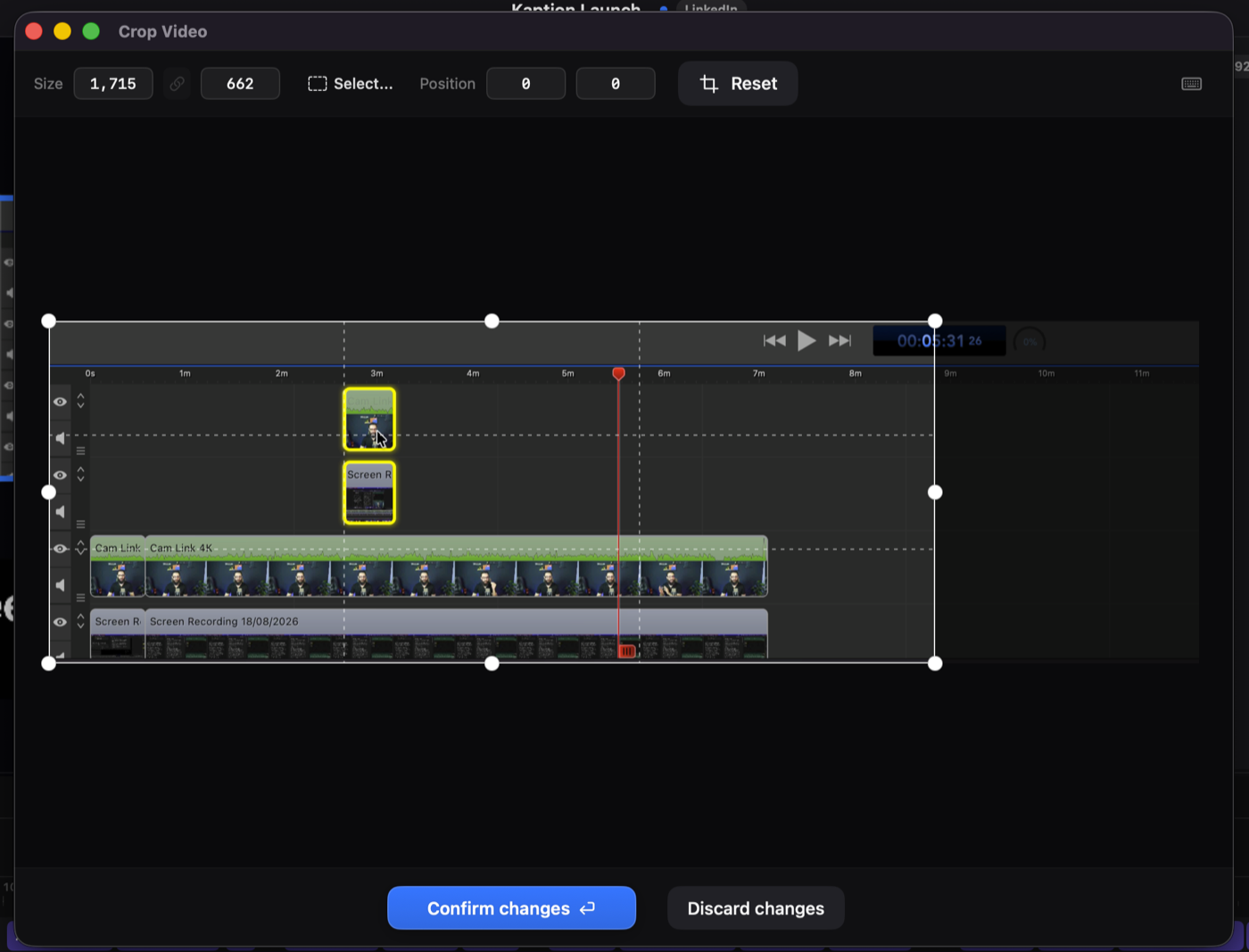
Working in the crop window
Section titled “Working in the crop window”- Drag the handles, or the whole region to move it. Hold ⌥ while dragging an edge or corner to resize from both sides at once, about the centre.
- The toolbar takes exact numbers — size and position in source pixels.
- Presets (16:9, square, vertical…) via the aspect menu; the link toggle locks the ratio while you drag.
- Reset returns to full frame.
- Return confirms. Esc discards and closes — from any field.
What happens after
Section titled “What happens after”The cropped picture keeps its true shape on the canvas — it is fitted inside its box, never stretched to fill it. Selection handles, and the Position and Scale numbers in the Video tab, describe the picture you actually see.
Cropping is non-destructive: reopen the window and the discarded pixels are still there to reclaim.