The camera bubble
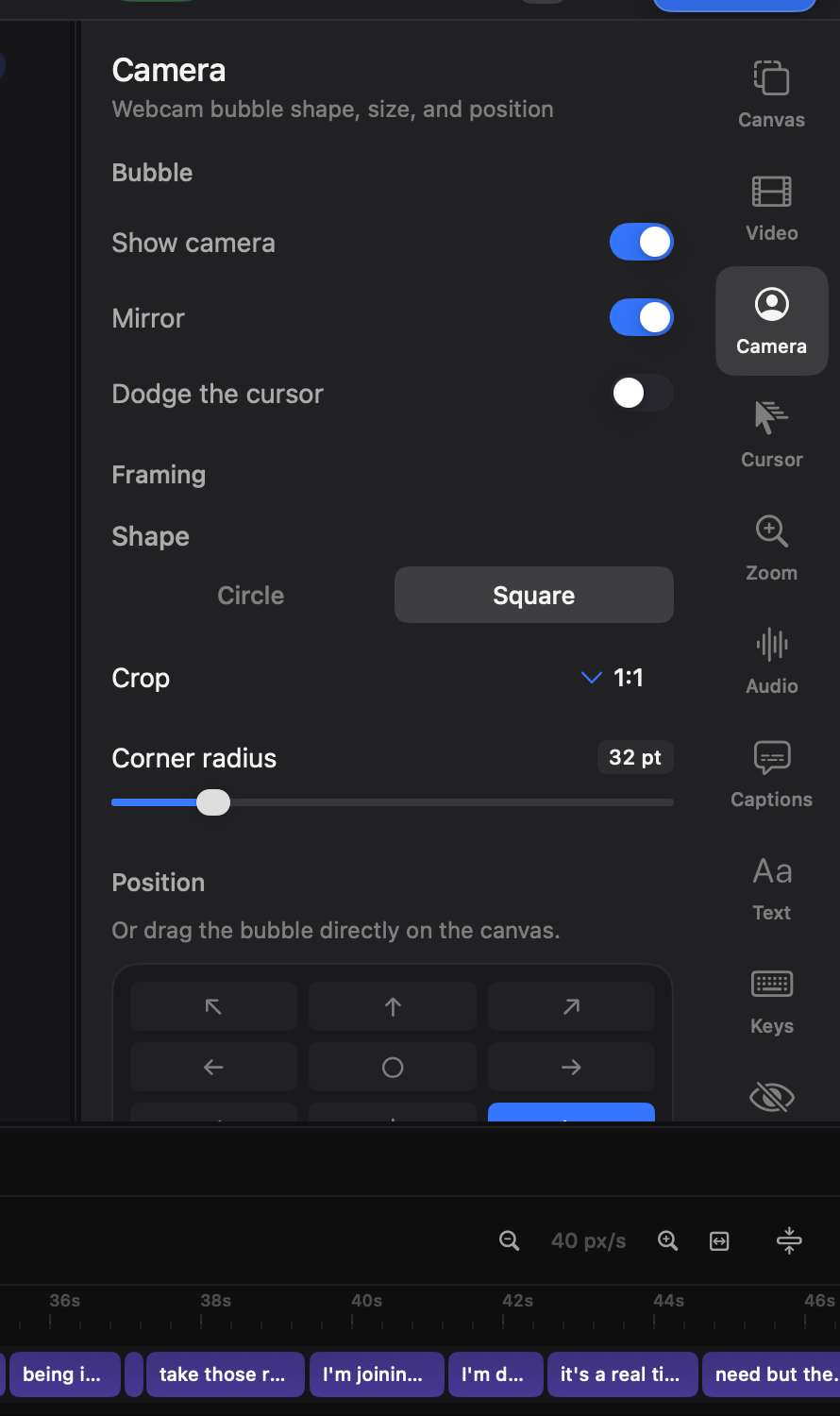
The camera records full-frame; everything about how it looks is an editing decision you can change at any point.
The basics
Section titled “The basics”Open the Camera tab (⌘3):
- Shape — rounded rectangle (with its own corner radius) or circle.
- Size & position — a ratio of the canvas plus a nine-point anchor, or just drag the bubble on the canvas.
- Animation — how the bubble arrives and leaves: a fade, or a slide from any side, over a duration you set. It applies to the camera clip under the playhead, so a bubble that appears part-way through can fade itself in.
- Mirror — flip it the way you’re used to seeing yourself.
- Border & shadow — a hairline and a soft lift, tuned separately.
- Crop — reframe yourself inside the bubble without touching the file.
Shrink on zoom
Section titled “Shrink on zoom”When a zoom pushes into the screen, the bubble can scale itself down and out of the way, then return when the zoom releases. The amount is a slider; zero disables it.
The camera as a clip
Section titled “The camera as a clip”The camera also lives on the timeline as its own lane, linked to the screen it was recorded with — cut the screen and the camera cuts with it. Promote it to a free layout (drag it on the canvas) and it behaves like any picture: position, scale, opacity, even ⌘K animations.
Full-screen camera moments — where the bubble takes over the whole frame for an aside — are a layout change on the camera clip, animatable with keyframes.
Each appended take brings its own camera footage, which plays inside the same bubble settings — the take’s picture imports as an ordinary video clip, but its camera stays a camera.