Titles & annotations
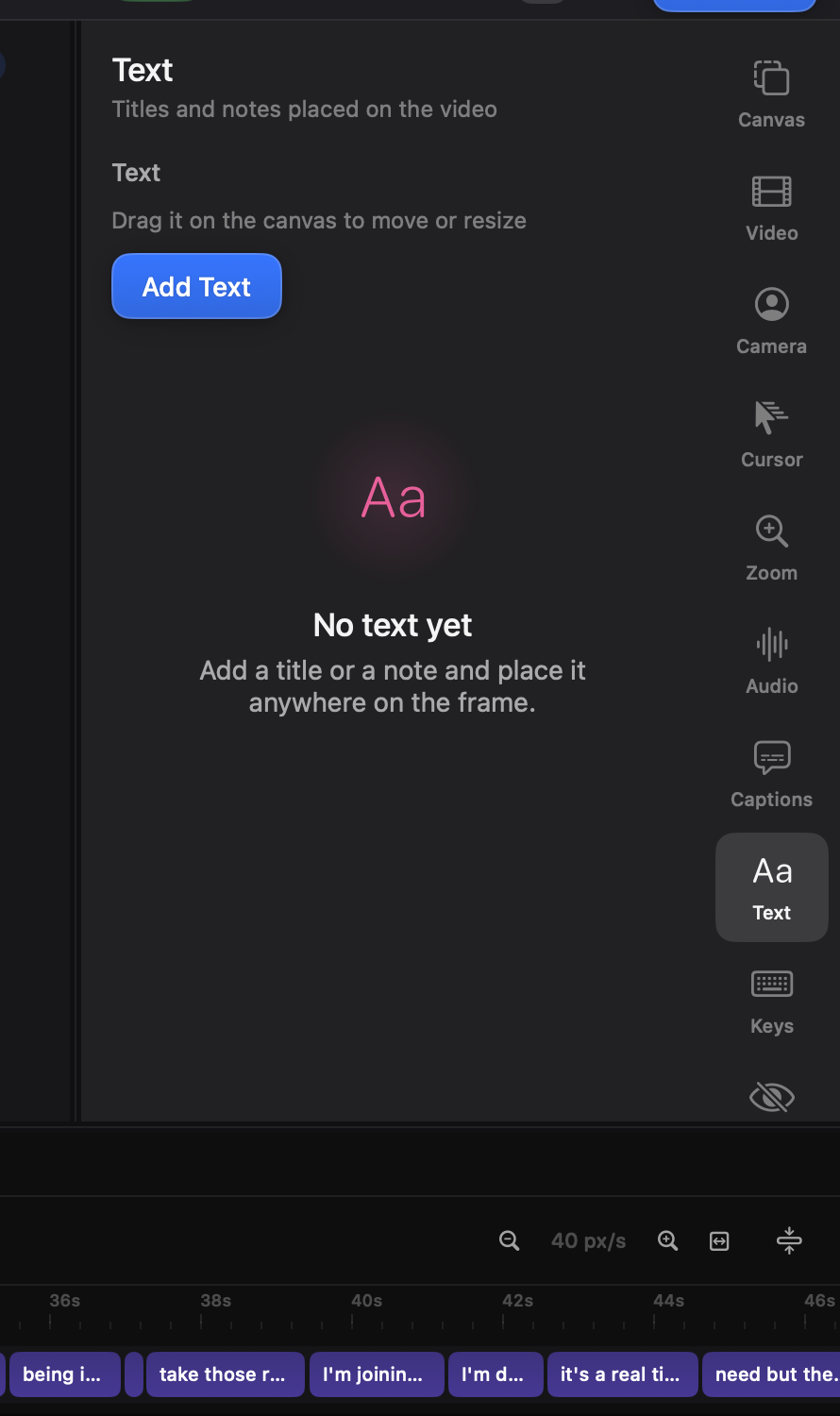
Add a title or a shape from the Annotate tab (⌘8) or the command palette. Both are clips: they sit on a lane, trim to the time they should hold, and move like anything else on the timeline.
Styling
Section titled “Styling”Titles share the caption engine’s typography — font, weight, size, colour, plate, outline — so your titles and your captions can’t drift apart. Each text clip styles independently.
The text box is multi-line: Return starts a new line, a blank line renders as a real gap, and Escape leaves the box. The plate behind the text takes any colour from the well under its opacity slider.
The box you drag on the canvas is the text’s frame: it sets wrapping and what the alignment works against. Keep it close around short titles so the handles stay near the words.
Shapes
Section titled “Shapes”Arrow, Line, Box and Circle, each with its own colour, thickness, and — for a box or a circle — whether it is filled or an outline. Nothing is shared between shapes, so two arrows in the same recording can look nothing like each other.
An arrow is two points rather than a box with a direction. It tapers from almost nothing at the tail to its full weight at the head, so which way it points is visible without following it. Drag either end on the canvas: that turns and lengthens the arrow in one movement, because the direction is the line between the two points. Flip direction swaps the ends.
A box or a circle is drawn inside its frame and can be turned. The knob above it spins it about its centre; hold Shift while dragging to snap to fifteen degrees. Everything turns with the shape — the outline, the handles, and the pointer — so a tilted box is grabbed at the corner you are pointing at and stretches along its own edges rather than the screen’s.
Shapes resize freely: each handle moves only the edges it touches, so a rectangle can become any rectangle. Hold Shift to keep the proportions instead.
Animating
Section titled “Animating”Titles animate like clips. Reveal chooses how the words arrive — all at once, typed, or word by word — using the same engine the captions do; with no spoken timings to follow, the words spread across the clip, so the length you trim a title to is its pacing. Fade in / Fade out ease the whole title on and off, and the Animation section gives it the same entrance and exit moves video overlays have — slide up, down, left or right, each with its own duration. For movement inside the clip, text takes ⌘K keyframes like any picture — a lower-third that slides in, holds, and slides out is two bars.
Shapes animate as shapes. Draw on traces the arrow, line, box or circle the way a hand would — tail to head, easing in and out along the stroke — and it is what a new shape gets. Undraw takes it back the same way on the exit. Fade is the alternative at either end, and those two are the whole menu: a shape is small enough that a slide is indistinguishable from a fade, so it is no longer offered.