Editing with AI agents
Kapture’s editor is fully scriptable over the Model Context Protocol — the open standard AI assistants use to operate tools. Connect an agent and it can open projects, cut silence, place zooms, style captions, arrange clips, and export — through the same engine as your own clicks, in the app window you’re watching. You see every change as it happens, and ⌘Z works on all of it.
What this looks like in practice
Section titled “What this looks like in practice”Things you can ask a connected agent to do, today:
- “Cut everything before the second marker, then tighten the dead air.”
- “Caption this, brand the highlight colour
#ffd140, bump the size for vertical.” - “Make a 30-second highlight reel from the part where I demo the export
flow.” — the
analyze_timelinetool reads your transcript, markers and activity to find it. - “Export all three timelines for their platforms and tell me the file sizes.”
Connecting
Section titled “Connecting”Everything lives in Kapture → Settings → Automation (⌘,) — or press MCP in the editor’s toolbar, which opens the same pane:
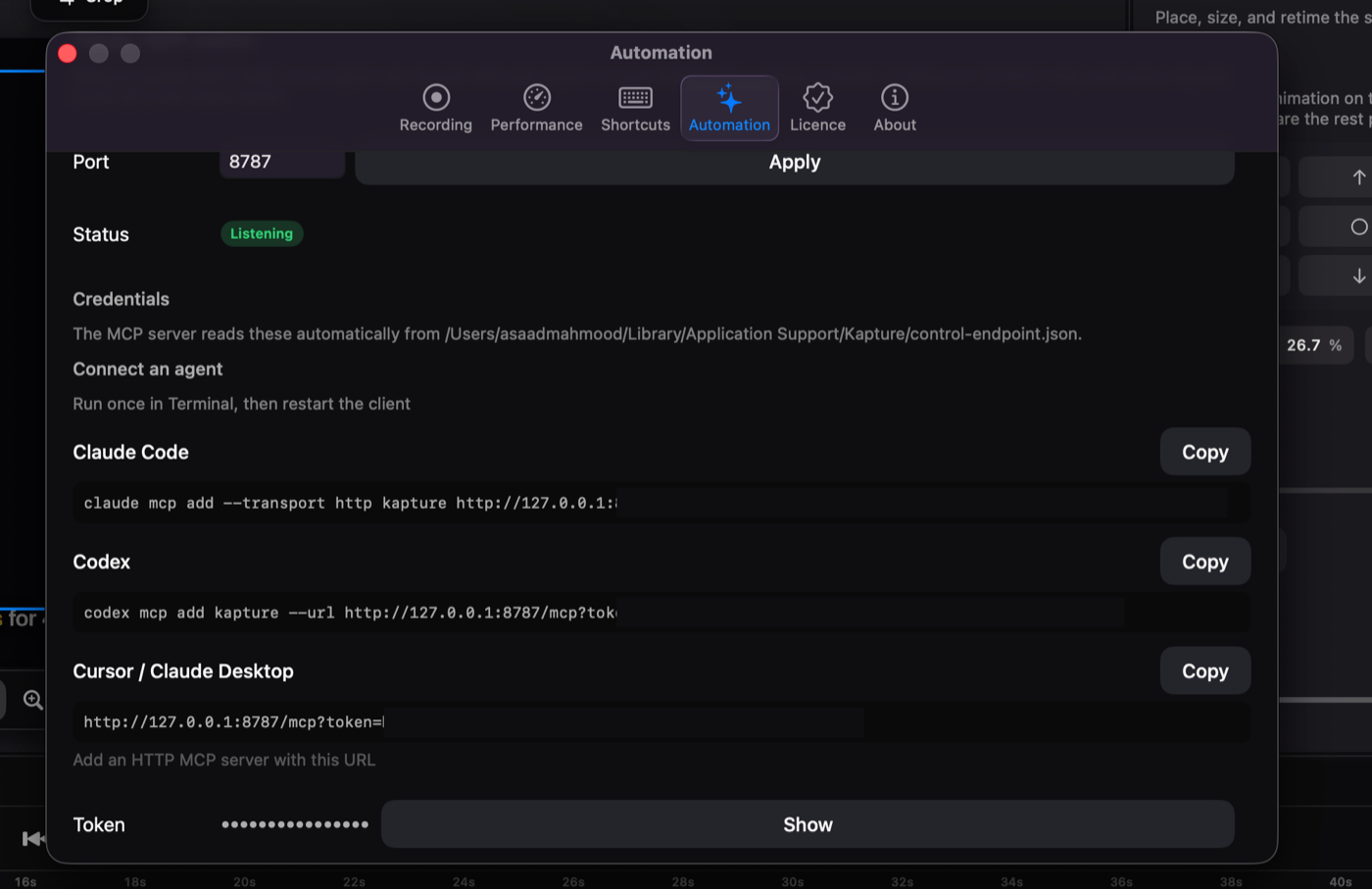
While Kapture runs, the pane shows Listening, and under Connect an agent there’s a ready-made command for each client with your token already filled in. Press Copy, run it once in Terminal, restart the client — done.
Claude Code
Section titled “Claude Code”claude mcp add --transport http kapture "http://127.0.0.1:8787/mcp?token=YOUR_TOKEN"Codex is an app inside ChatGPT for most people, with no terminal to type a
command into, so Kapture adds itself. In Settings → Automation, the
Codex row has a Connect button: it writes the entry into
~/.codex/config.toml, which the Codex app in ChatGPT, the Codex extension
and the codex command all read, leaves every other server in that file
alone, and turns into Remove so you can take it out again. Start a new
Codex thread afterwards, and keep Kapture running.
If you use the command line, this does the same thing:
codex mcp add kapture --url "http://127.0.0.1:8787/mcp?token=YOUR_TOKEN"Claude Desktop
Section titled “Claude Desktop”Do not use Settings → Connectors → Add custom connector for Kapture.
That dialog adds a remote connector: Anthropic’s servers call the URL,
and they cannot reach 127.0.0.1, which is your Mac and nobody else’s. It
also refuses anything that is not https. There is nothing to fix — the
address is local on purpose, because Kapture never sends your recordings
anywhere.
Kapture adds itself. In Settings → Automation, the Claude Desktop row has a Connect button: it writes the entry into Claude Desktop’s config for you, leaves any other servers in that file alone, and turns into Remove so you can take it out again. Quit and reopen Claude Desktop afterwards, and keep Kapture running.
Regenerating the token updates the entry too, so the connection does not quietly stop working.
If you would rather do it by hand, the file is
~/Library/Application Support/Claude/claude_desktop_config.json
(Settings → Developer → Edit Config), and the entry is:
{ "mcpServers": { "kapture": { "command": "npx", "args": ["-y", "mcp-remote", "http://127.0.0.1:8787/mcp?token=YOUR_TOKEN"] } }}mcp-remote bridges Kapture’s HTTP server to the stdio transport Claude
Desktop launches. Restart Claude Desktop afterwards. Kapture must be running
for the tools to appear.
Cursor, anything else
Section titled “Cursor, anything else”Add an HTTP MCP server with the URL as shown in the pane:
http://127.0.0.1:8787/mcp?token=YOUR_TOKENFor clients that take JSON config:
{ "mcpServers": { "kapture": { "type": "http", "url": "http://127.0.0.1:8787/mcp?token=YOUR_TOKEN" } }}In every case, YOUR_TOKEN is the token from the bottom of the Automation
pane (Show reveals it, or just use the pre-filled Copy buttons and never
look at it). Clients that prefer headers can send
Authorization: Bearer YOUR_TOKEN instead of the query parameter — both
work.
Good to know
Section titled “Good to know”- Local only. The server binds to your machine; nothing about your project leaves it. The token rotates with the app and gates every request.
- The frontmost project is the one being edited. Working in two projects
at once? Ask the agent to
open_projectexplicitly — it follows the window in front. - Everything is undoable and visible. Agent edits land in the open editor exactly like your own.
- 42 tools cover recording through export — the full reference lists each one.