

If you record product demos on a Mac, Screen Studio is usually the first tool someone recommends. It is genuinely good software. It also costs $20 a month, has no free tier at all, and — by its own public feature board — has not shipped a long list of things its users keep voting for.
Kapture is a Mac screen recorder built on the same premise: record the screen, let the app do the boring edit. Here is what it does that Screen Studio does not.
It is free to record and edit
Screen Studio has no free tier. The cheapest way to find out whether it suits you is $9 a month billed annually, or $20 billed monthly.
Kapture records and edits free, with no account and no trial clock. A watermark on the export is the only thing Pro removes, and Pro is $96 a year covering two Macs.
An AI agent can drive the whole editor
This is the one nothing else on macOS does. Kapture ships a Model Context Protocol server exposing 42 tools, so Claude, Cursor or any MCP client can operate the editor with the same verbs you have — start a recording, trim it, place zooms, crop the canvas, generate captions, cut vertical reels, export.
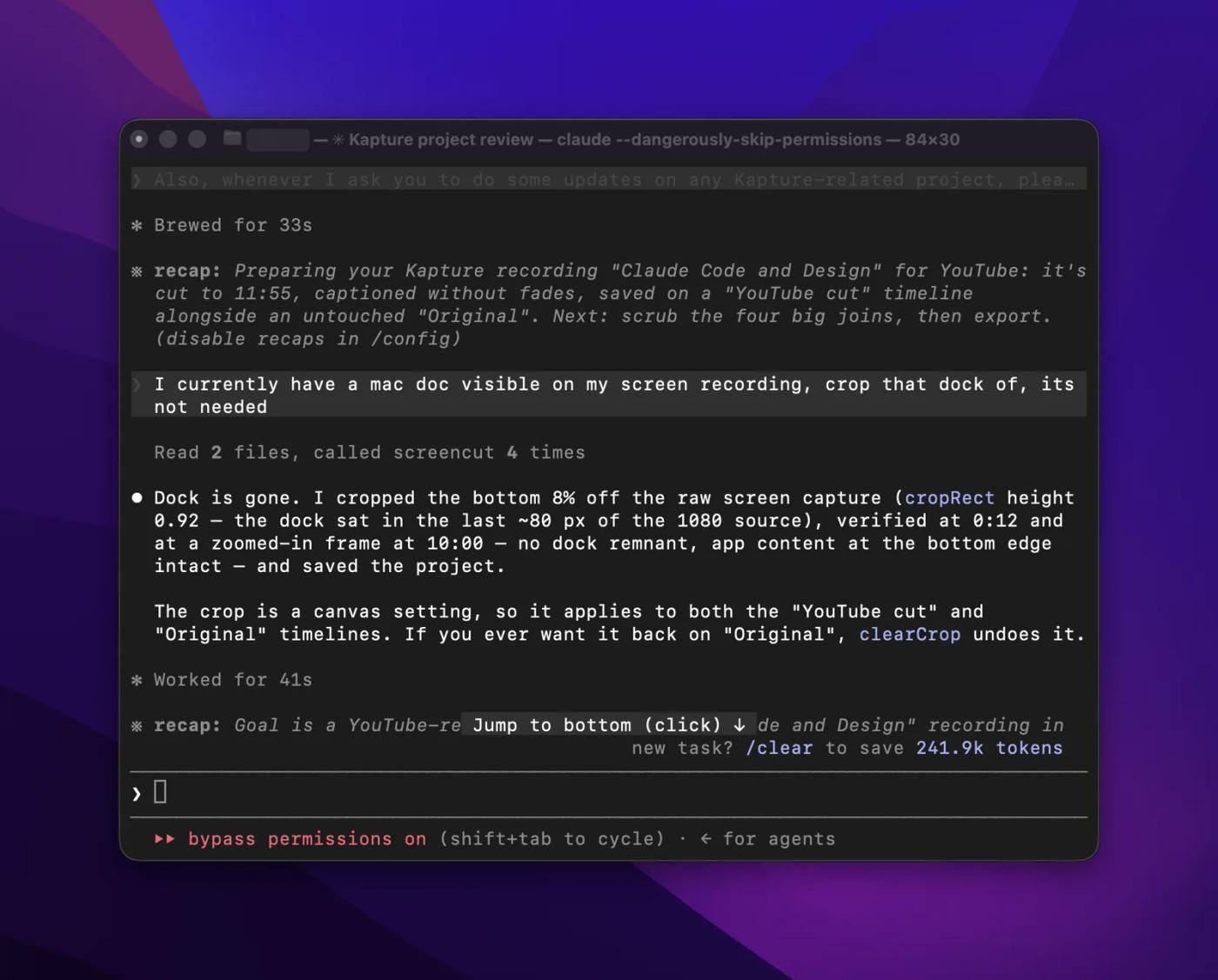
That is not a mock-up. Screen Studio has no equivalent and no ticket for one.
Five cuts of one recording, with different styles and effects
A timeline in Kapture is a whole alternative edit — its own trims, zooms, captions, masks and markers over the same source media. The project in these screenshots carries five: a YouTube cut, the untouched Original, a Feature reel, a Social cut, and a scratch timeline for trying things.
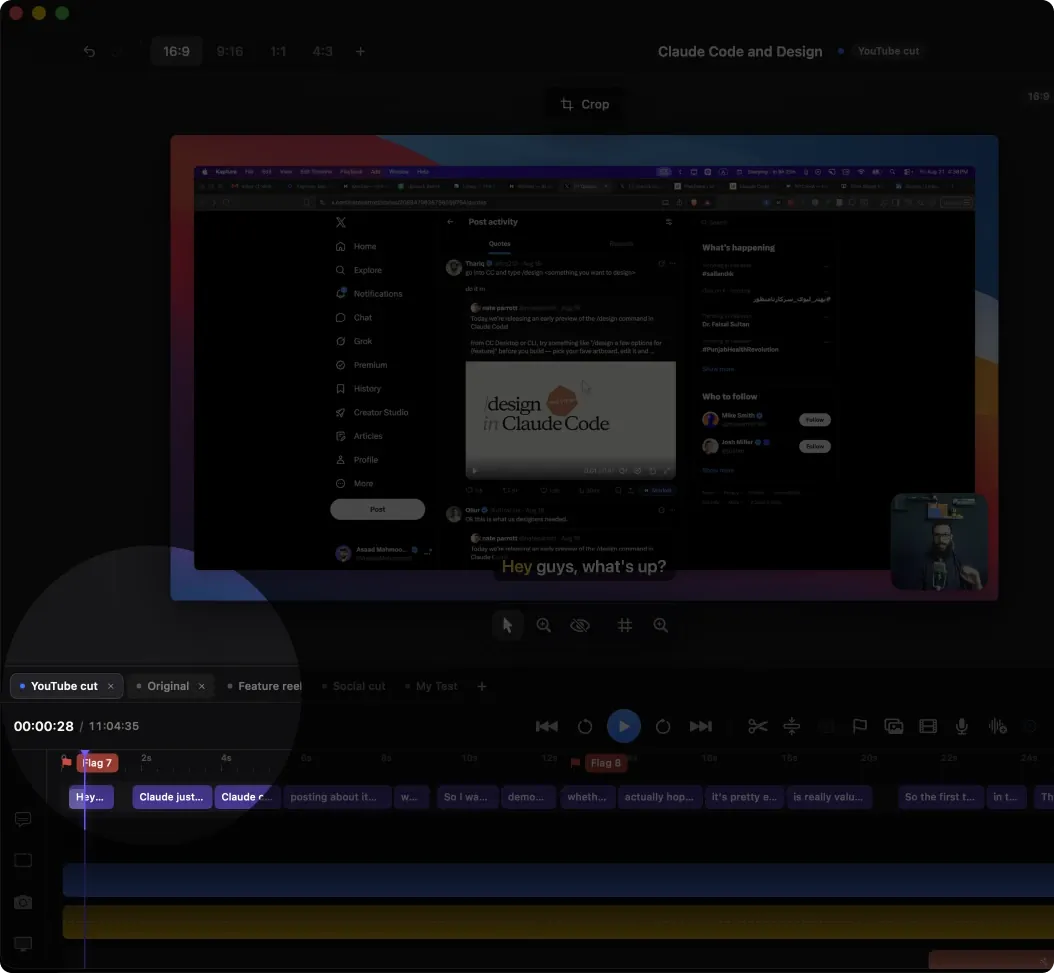
Screen Studio's board has Multi-clip recordings at 453 votes, still marked Planned.
A real multi-track timeline
Twenty-two video clips, eleven audio clips, seventy-two zoom segments and four hundred and sixty-one caption cues, on one timeline. Zoom chips carry their own rate, keystrokes appear as chips where they were pressed, and the audio under it as a waveform you can cut against.
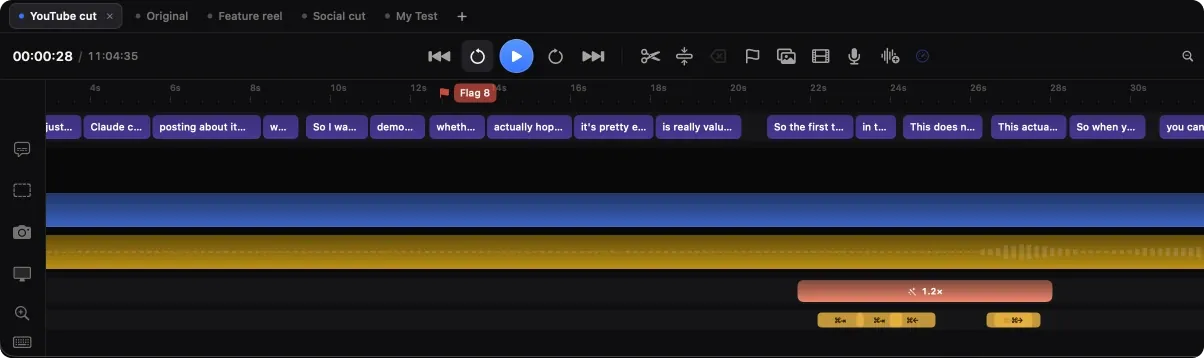
Import clips or append external video is the single most-voted item on Screen Studio's board — 513 votes, Planned. Import audio is 316, Planned. Both work in Kapture today.
Captions you can actually design
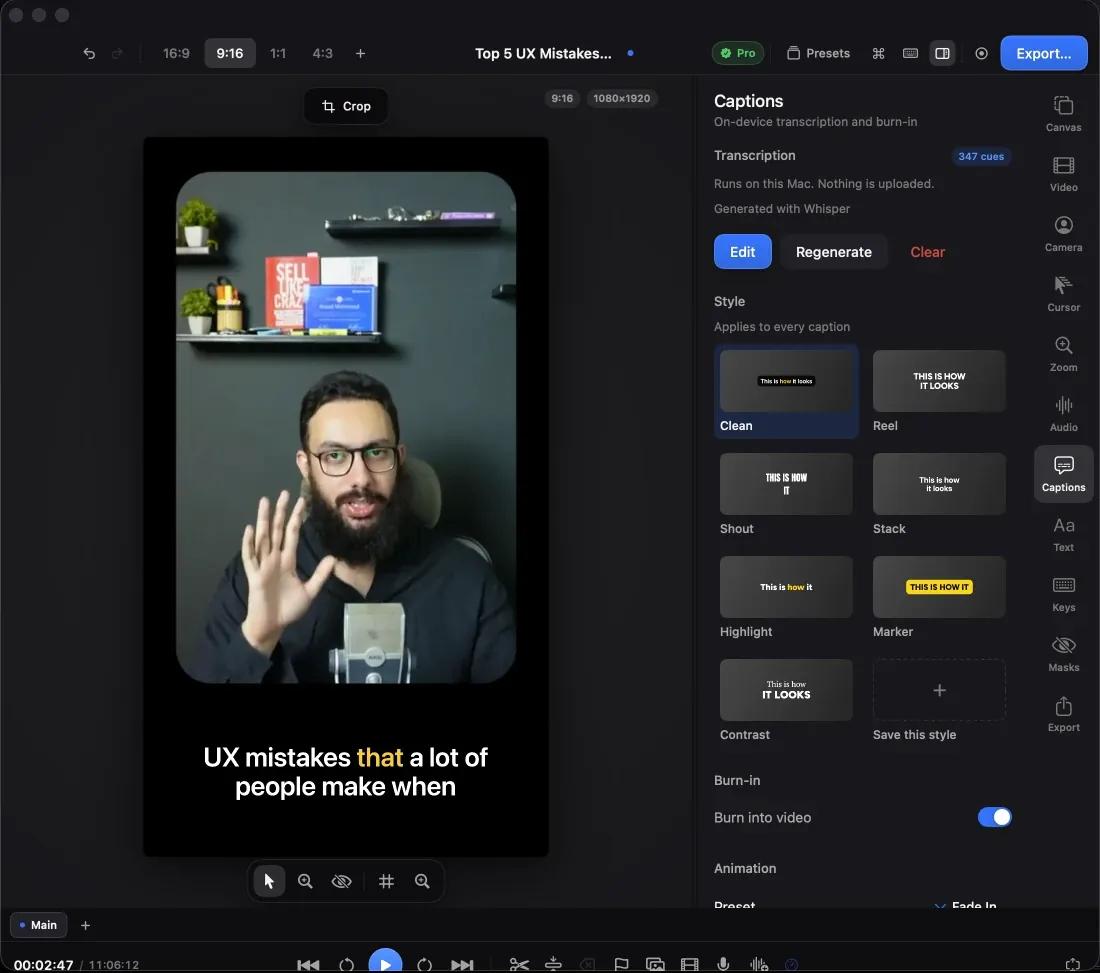
Transcription runs on the machine with a Whisper model — no audio uploaded, which for anyone recording internal tooling or customer data is the difference between a usable tool and one legal will not approve.
Then you style them. Seven presets to start from, and every part is editable: typeface and weight, size, colour, highlight colour and mode, backdrop, position, entrance animation, and a separate full-screen size and padding. Save your own preset and it appears alongside the built-ins. Styles apply to the whole track or to one caption on its own.
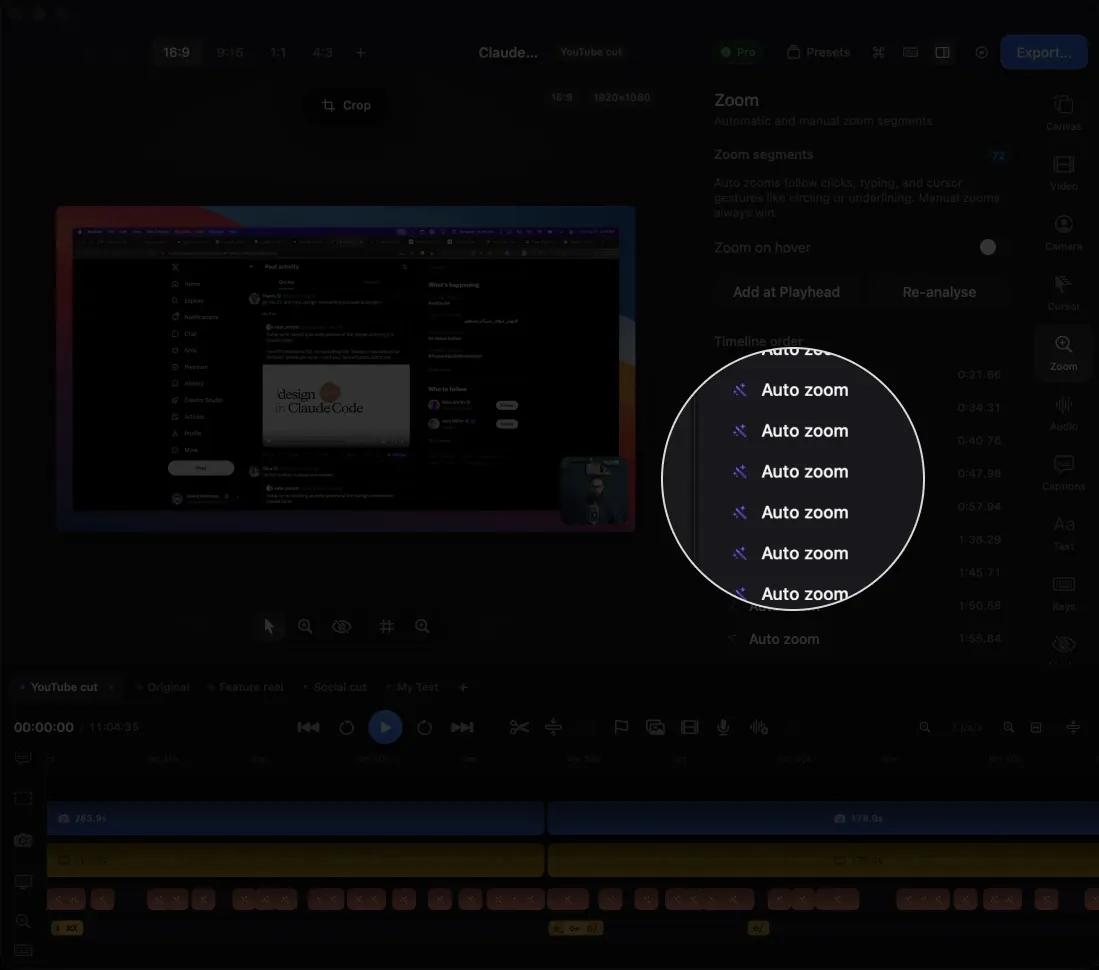
Zooms placed from the input log, not the picture
Kapture records what you did while it recorded — every click, keystroke and scroll — and places its zooms from that log rather than analysing pixels. A cursor is four pixels wide; finding it by looking is a losing game, and macOS already knows where it went.
Seventy-two zoom segments on this recording, every one listed, retimeable and deletable. Add your own at the playhead, re-analyse the whole take, or turn on zoom-on-hover. Manual zooms always win over automatic ones.
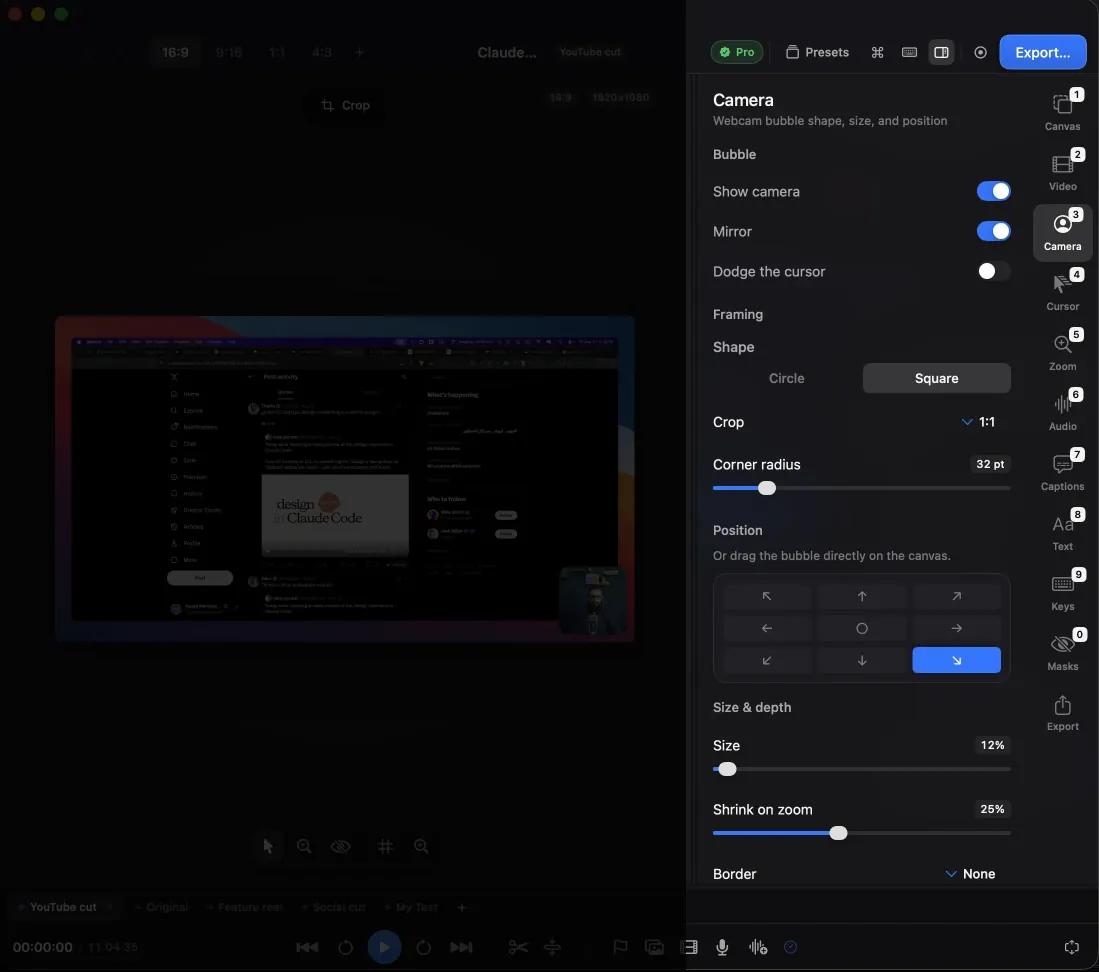
The camera bubble, after the fact
Shape, crop, corner radius, position, size, border, shadow — all editable after recording. It can shrink itself when a zoom comes in, and dodge the cursor so it never covers what you are pointing at.
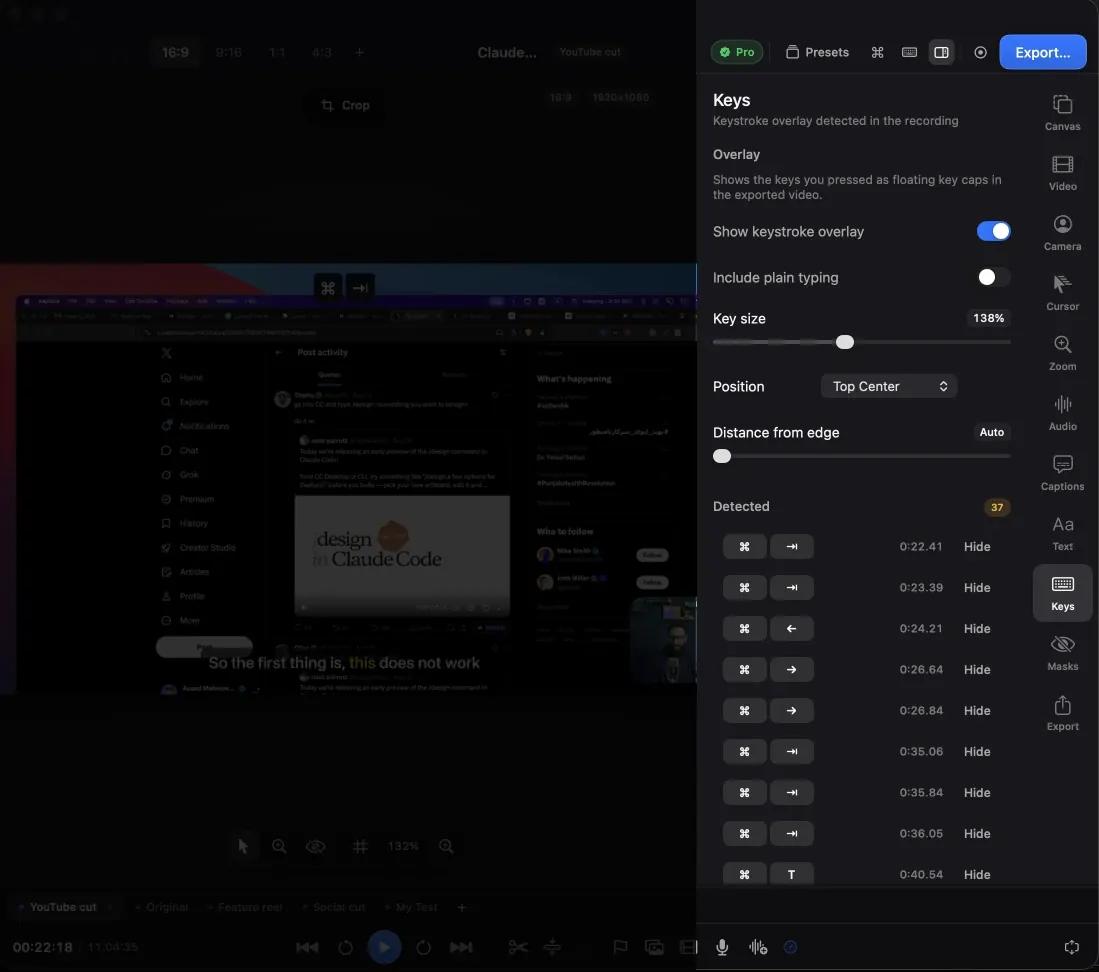
A keystroke overlay built from what you actually pressed
The same input log that places the zooms draws the key caps. Thirty-seven shortcuts detected in this recording, each listed with its timestamp and a Hide button for the ones you would rather not show.
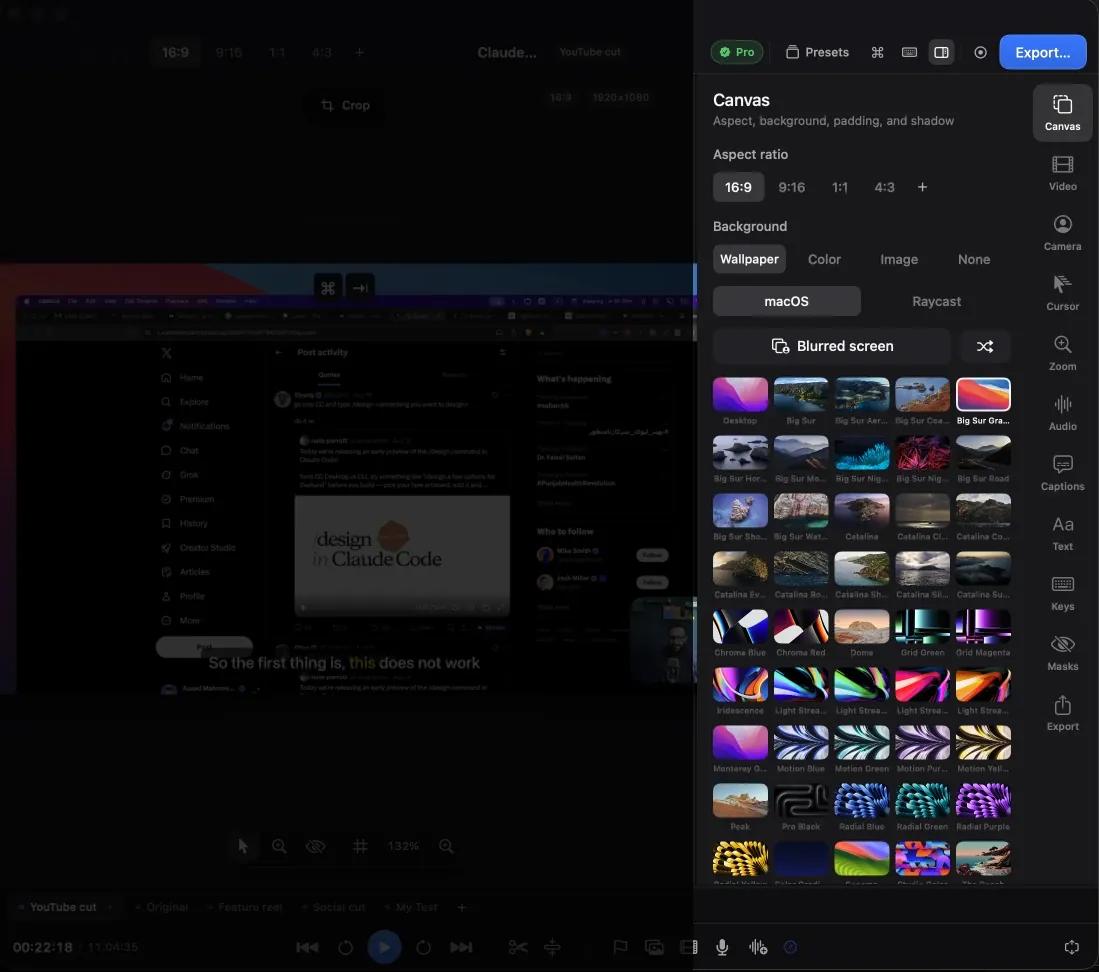
Backgrounds, including the one Screen Studio refused
Wallpapers, solid colours, your own image — or None, which exports with no background at all. Transparent background is the fourth most-requested item on Screen Studio's board with 148 votes, and it is closed as rejected. If your footage goes into After Effects, DaVinci or a ProRes pipeline, that is a permanent no over there.
Nine things Screen Studio's own users are still waiting for
Real tickets on Screen Studio's public board, with status and vote count. Every one works in Kapture today.
Import clips or append external video — 513 votes, Planned. Pictures and movies drop onto the timeline; an existing mp4 or mov opens as a project.
Multi-clip recordings — 453 votes, Planned. Five timelines over one recording, each a separate edit.
Add a voice over — 329 votes, In Progress. Voiceover clips sit on their own lane, levelled against the mix.
Import audio — 316 votes, Planned. Narration or music drops onto the audio lane.
Transparent background — 148 votes, Rejected. A background option, as above.
Multiple mask layers — 142 votes, Planned. Masks are a list — blur or spotlight as many rectangles as needed.
Voice audio enhancement — 117 votes, In Progress. Noise reduction and loudness normalisation run on every export.
Resize and move the camera after recording — 60 votes, In Review. Size, position, shape and corner radius, all editable in post.
Crop the camera view — 56 votes, In Review. The camera has its own crop, independent of the screen.
Where Screen Studio is still ahead
A comparison that only lists wins is an advert, so: buy Screen Studio instead if you need any of these.
- Shareable links. It hosts your video and gives you a URL. Kapture exports a file and stops.
- Recording an iPhone or iPad. Kapture does displays, windows, regions and a webcam, not a connected device.
- Camera background blur. In progress there. Kapture blurs the wallpaper behind the recording, not you from your room.
- Annotations, transitions, filler-word removal. On their roadmap, absent here.
- Maturity. Shipping since 2022, and the animation polish is why people recommend it.
Which should you use?
Screen Studio if you want the most polished animation defaults available today, need a shareable link without setting up hosting, or record an iPhone screen regularly.
Kapture if you would rather not pay a subscription to find out whether it suits you, need transparent export or on-device transcription, want an editor an AI agent can drive, or are waiting on something still marked Planned over there.
Recording and editing are free. There is nothing to cancel.
Frequently asked questions
Is there a free Screen Studio alternative for Mac?
Yes. Kapture records and edits free, with no account and no time limit, and only watermarks the export. Screen Studio has no free tier — the cheapest entry is $9 a month billed annually.
Does Kapture do automatic zoom like Screen Studio?
Yes, and it places zooms from the input events recorded alongside the video rather than by analysing the picture. Every zoom can be retimed, moved or deleted.
Can I customise captions in Kapture?
Yes — seven presets plus full control of typeface, weight, size, colour, highlight mode, backdrop, position and entrance animation, saved as your own preset and applied to a whole track or a single caption.
Can an AI assistant edit my screen recording?
In Kapture, yes. Its MCP server exposes 42 tools, so any MCP client can record, trim, zoom, caption and export. Screen Studio has no equivalent.
How much does Screen Studio cost?
$20 a month billed monthly, or $9 a month billed yearly — $108 a year. Kapture Pro is $96 a year and covers two Macs.